I think I missed this one out. Many of us connect to Microsoft's SQL Server database using controls. I don't usually use this technique because it is quite limiting for me. Here's how to connect to MSSQL Server 2005 database using C#:
1. First, create a database (I'm using MS SQL Server 2005 express edition, so I use the SQL Server Management Studio IDE which can be downloaded here.)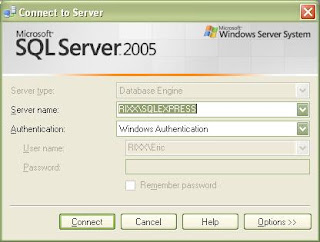
2. To proceed, I'm assuming that you can already connect to your server (or the instance thereof). If the Windows Authentication doesn't work, you might want to try the user 'sa'. The password actually depends on what you specified during its installation.
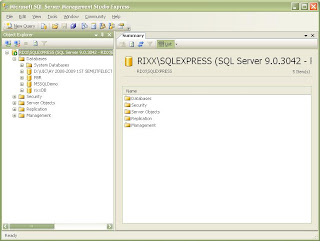
3. Right click on the "Databases" folder and click "New Database".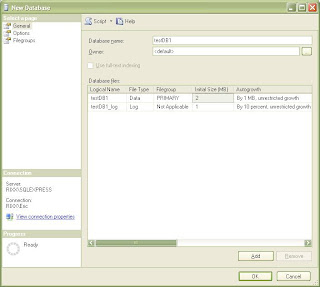
(Just leave everything default and click ok).
4. Expand the newly created database folder (in my case, it's testDB1), and create a new table with the following attributes:
Table Name: TestTable1
Fields:
Id:Integer, auto increment, pk
Description: varchar(50)
(I won't go on the details on creating this table).
5. Populate your table. Mine has the following data:
Id Description
1 aaa
2 bbb
3 ccc
4 ddd
5 eee
6. Now we go to the C# express IDE. I'll be using C# express 2008. (I named my project "ConnectToSQLServer").
 7. Add a DataGridView control to the form.
8. Go to the code view of your form.
9. On the upper part of the code where you can find the "using" statements, add the following:
using System.Data.OleDb;
10. Add the following code to the constructor (modify the connection string to fit your setting. In my case, the SQL server is Rixx\SQLExpress. I'm using the trusted connection since I'm using Windows Authentication for my access level):
OleDbConnection cn = new OleDbConnection(@"Provider=SQLNCLI;Server=RIXX\SQLExpress;Database=testDB1;Trusted_Connection=yes;");
cn.Open();
OleDbDataAdapter da = new OleDbDataAdapter("select * from testTable1", cn);
DataTable dt = new DataTable();
da.Fill(dt);
dataGridView1.DataSource = dt;
11. run the program. The data from your database should be shown.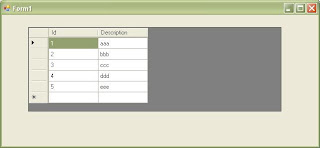
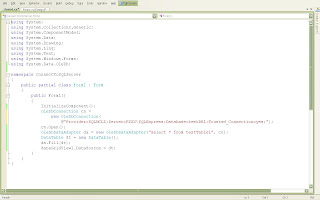
The codes will look like this:
1. First, create a database (I'm using MS SQL Server 2005 express edition, so I use the SQL Server Management Studio IDE which can be downloaded here.)

2. To proceed, I'm assuming that you can already connect to your server (or the instance thereof). If the Windows Authentication doesn't work, you might want to try the user 'sa'. The password actually depends on what you specified during its installation.

3. Right click on the "Databases" folder and click "New Database".

(Just leave everything default and click ok).
4. Expand the newly created database folder (in my case, it's testDB1), and create a new table with the following attributes:
Table Name: TestTable1
Fields:
Id:Integer, auto increment, pk
Description: varchar(50)
(I won't go on the details on creating this table).
5. Populate your table. Mine has the following data:
Id Description
1 aaa
2 bbb
3 ccc
4 ddd
5 eee
6. Now we go to the C# express IDE. I'll be using C# express 2008. (I named my project "ConnectToSQLServer").
 7. Add a DataGridView control to the form.
8. Go to the code view of your form.
9. On the upper part of the code where you can find the "using" statements, add the following:
using System.Data.OleDb;
10. Add the following code to the constructor (modify the connection string to fit your setting. In my case, the SQL server is Rixx\SQLExpress. I'm using the trusted connection since I'm using Windows Authentication for my access level):
OleDbConnection cn = new OleDbConnection(@"Provider=SQLNCLI;Server=RIXX\SQLExpress;Database=testDB1;Trusted_Connection=yes;");
cn.Open();
OleDbDataAdapter da = new OleDbDataAdapter("select * from testTable1", cn);
DataTable dt = new DataTable();
da.Fill(dt);
dataGridView1.DataSource = dt;
11. run the program. The data from your database should be shown.

The codes will look like this:

Comments